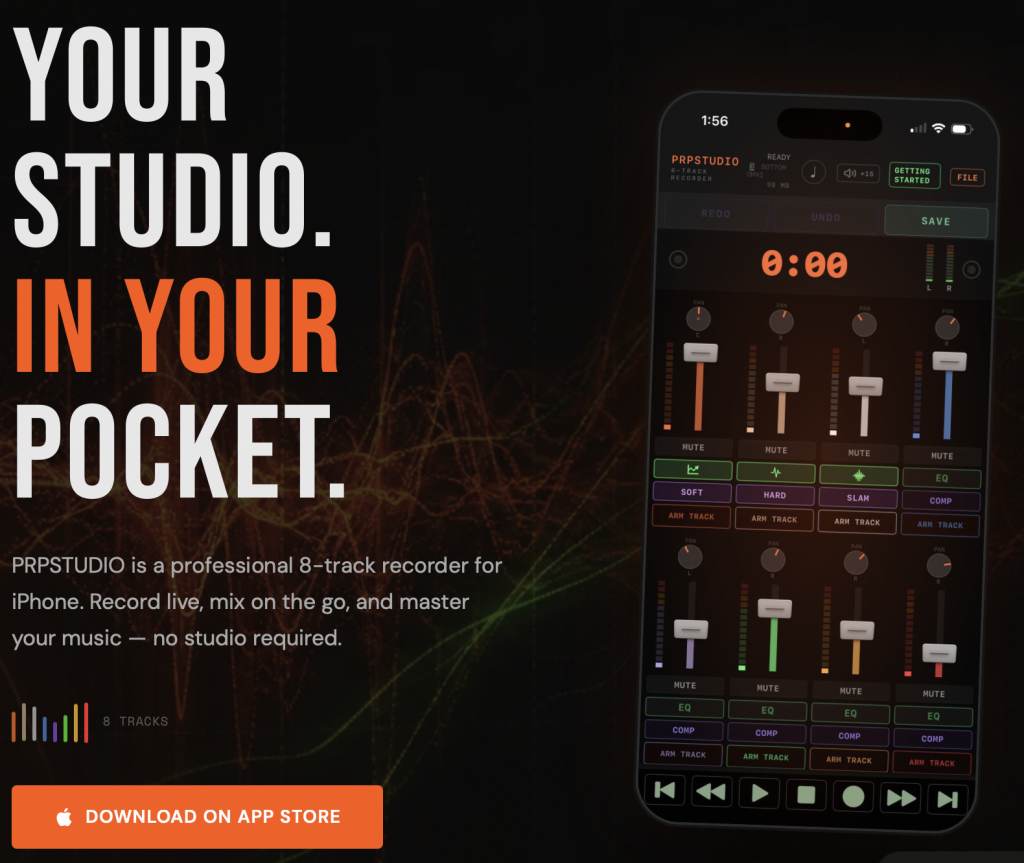
PRPStudio is a complete eight-track recording studio that fits in your pocket.
8 Track Recording
Built by a recording engineer for songwriters. Capture vocals and acoustic instruments; build full multitrack demos right on your iPhone or iPad. No audio interface. No external microphone. No complicated setup. Plug in your earbuds, choose your input, and record.
WHY IS IT PRO?
PRPStudio records in raw wave format. There is no DSP, other than the eq and the compression that YOU choose on the track. The stems can be transferred to a Professional DAW system. They are 48K, 32bit floating format with no embedded limiting or eq attached by Apple software.
CAPTURE YOUR IDEA
Lay down up to eight tracks, one layer at a time. Set the right level for what you’re recording by tapping the ARM button — INSTRUMENT, VOCAL, SOFT VOCAL, or PERCUSSION — each tuned for that kind of source. Watch the per-track meters with 2-second peak hold so you always know your levels are clean.
FIX IT AS YOU GO
Punch in to re-record just part of a take — the audio before and after is preserved with smooth crossfades. Undo and redo keep your last pass safe.
SHAPE YOUR SOUND
Every track has a built-in four-position EQ to roll off rumble and add presence. Mix with real vertical faders and pan each track across the stereo field — the tools that turn a stack of takes into a finished-sounding song.
SHARE IT ANYWHERE
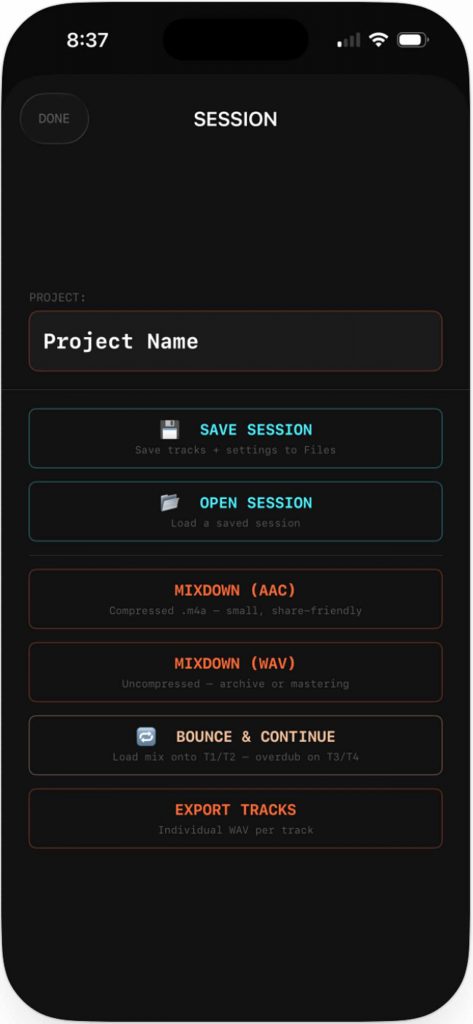
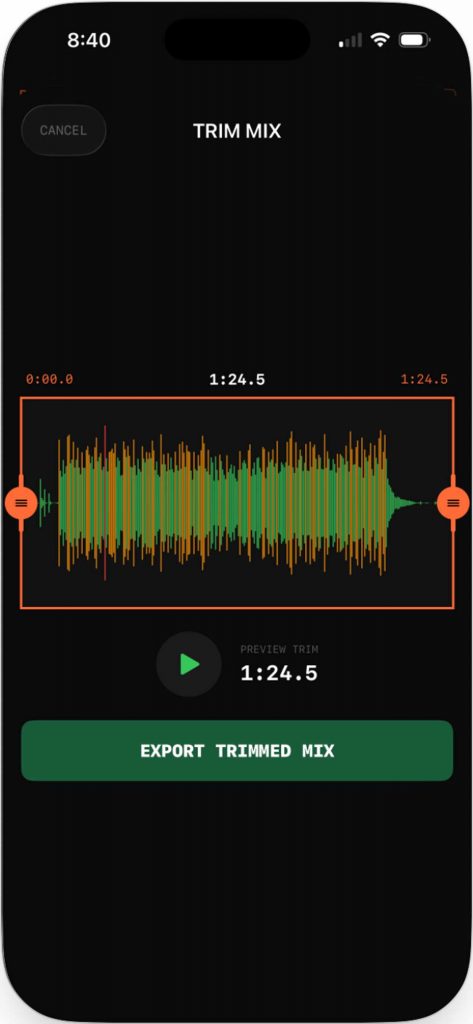
Bounce a compressed file for texts and social, or an uncompressed WAV for quality. Export individual track stems to finish in a desktop DAW. Trim the start and end before you send.
MADE FOR HOW YOU WORK
- Eight tracks with Bounce & Continue for unlimited layering
- Clean, raw microphone capture — no automatic processing coloring your sound
- Built-in metronome with adjustable tempo and time signature
- Designed for both iPhone and iPad
- Works completely offline — your recordings never leave your device
Start recording in your bedroom. A few hours later, your masterpiece is done.
GETTING STARTED WITH PRPSTUDIO
HEADPHONES
Use wired earbuds or headphones for recording and overdubbing. Bluetooth — including AirPods — has too much latency to play along in time with your earlier takes. Bluetooth is fine once you are only mixing back what you have already recorded.
BEFORE YOU RECORD
Turn on Focus mode (or Do Not Disturb) before tracking. Notifications, texts, and alarms are silenced automatically while the app is open — but an incoming phone call will still interrupt recording. If a call does come in, your take up to that point is saved. Focus mode keeps the call from ringing through in the first place.
SETTING YOUR INPUT LEVEL
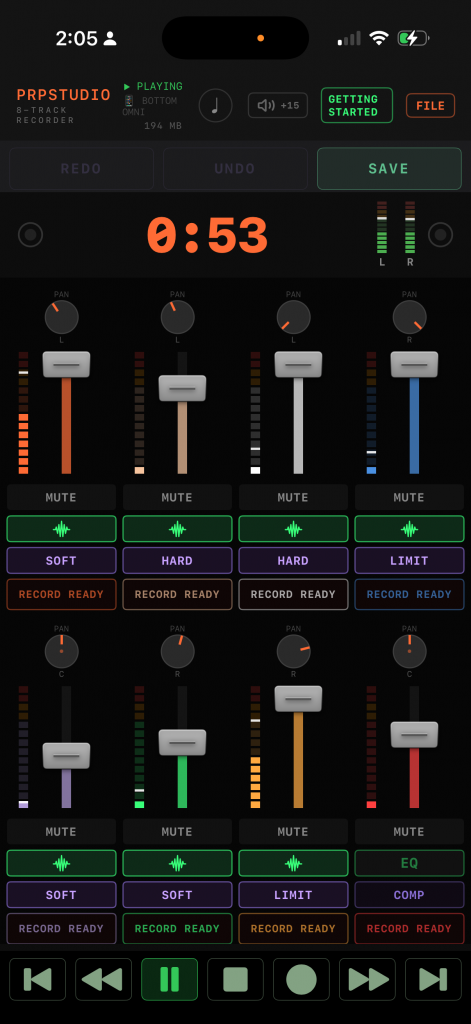
PRPStudio records a clean, raw mic signal — no automatic gain, no coloration. You set the level with the ARM TRACK button: tap it to cycle through INSTRUMENT, VOCAL, SOFT VOCAL, and PERCUSSION, each tuned for that kind of source. Watch the channel’s VU meter as you play your loudest part — if the peak marker reaches the red, step down a setting. The meter shows the true recorded level and works with or without headphones.
PLAYING WITHOUT HEADPHONES
To get clean recordings, PRPStudio runs the mic in a measurement mode — and one side effect is that speaker playback is quieter than normal. When you want to share a track with someone in the room, tap the +15 speaker icon in the header. It boosts playback so it is audible across the room without headphones. The boost automatically turns off when you plug headphones in, so it never blasts your ears.
THINGS TO KNOW
- The musical note at the top of the screen is your Click Track. Tap it to open the metronome. The click is meant for your first take and mutes automatically once you have recorded a track. You can preview the click there with the PREVIEW button before you record.
- Setting your level is built into the ARM TRACK button. Tap it to cycle: ARM TRACK (off) → INSTRUMENT → VOCAL → SOFT VOCAL → PERCUSSION → off. Each setting applies the right amount of input gain for that kind of source — INSTRUMENT for louder sources like strummed guitar, VOCAL for normal singing, SOFT VOCAL for quiet or intimate vocals, and PERCUSSION for claps, shaker, tambourine and other very loud transients. Pick the one that matches what you are recording.
- Each track keeps its own input setting — Track 1 could be INSTRUMENT and Track 3 VOCAL. Only one track is armed at a time; arming one disarms the others.
- Watch the VU meter on the armed track’s channel while you play your loudest part. The meter shows the true recorded level and holds its highest peak for 2 seconds. If the peak marker hits the red near the top, step the ARM button down a setting. The meter works with or without headphones.
- To get started: pick your input setting on the ARM TRACK button, turn the click on or off, and start performing.
- “Undo” only works for the latest pass. There is also a “Redo” button in landscape mode in case you undo by accident.
- Each track has a vertical VOLUME fader with a VU meter beside it, and a PAN knob above it. These set the track’s place in your mix — they do not affect input level. Adjust them freely to balance your overdubs.
- The EQ button on each track cycles through four shelving settings: FLAT (off), HP (cuts lows below 85 Hz — kills rumble and mic-handling thumps), AIR (boosts highs at 3.5 kHz for presence), and HP+AIR (both). The icon on the button shows what is currently active.
- The COMP button below EQ adds compression to a track. Tap to cycle: COMP (off) → SOFT → HARD → SLAM → off. SOFT is gentle and transparent — good for evening out a vocal. HARD is more audible — good for tightening a vocal or sustaining an acoustic guitar. SLAM is aggressive — for the squashed, loud, in-your-face sound. Compression is applied non-destructively, so your raw recording is preserved.
- Punch-in: to fix part of a recorded track, move the transport to the spot, arm that track, and record over just that section. The audio before and after your punch is kept, with smooth crossfades.
- To export a mix, tap EXPORT. You can bounce a compressed AAC file (small — good for texts and social) or an uncompressed WAV. There is also a trim editor to tighten the start and end. Individual track stems can be exported as WAV to finish in a DAW.
- Bounce and Continue takes your whole mix and replaces Tracks 1 and 2 with it, freeing Tracks 3-8 for more overdubbing. This is not undoable.
- On iPad, the mixer fills the screen — all 8 channel strips and a master fader sit side by side in landscape, with EQ and COMP visible on each strip. Everything else works the same way it does on iPhone.
Happy Recording!
Regards, Jeff Coppage